The track editor
A track on Sonic Grid is a song with pictures laid along it. The editor is where you decide which images and video clips show during which part of the song, and what text appears over them. Most of that is done by dragging, double-clicking and right-clicking, so this page is mostly a list of gestures.
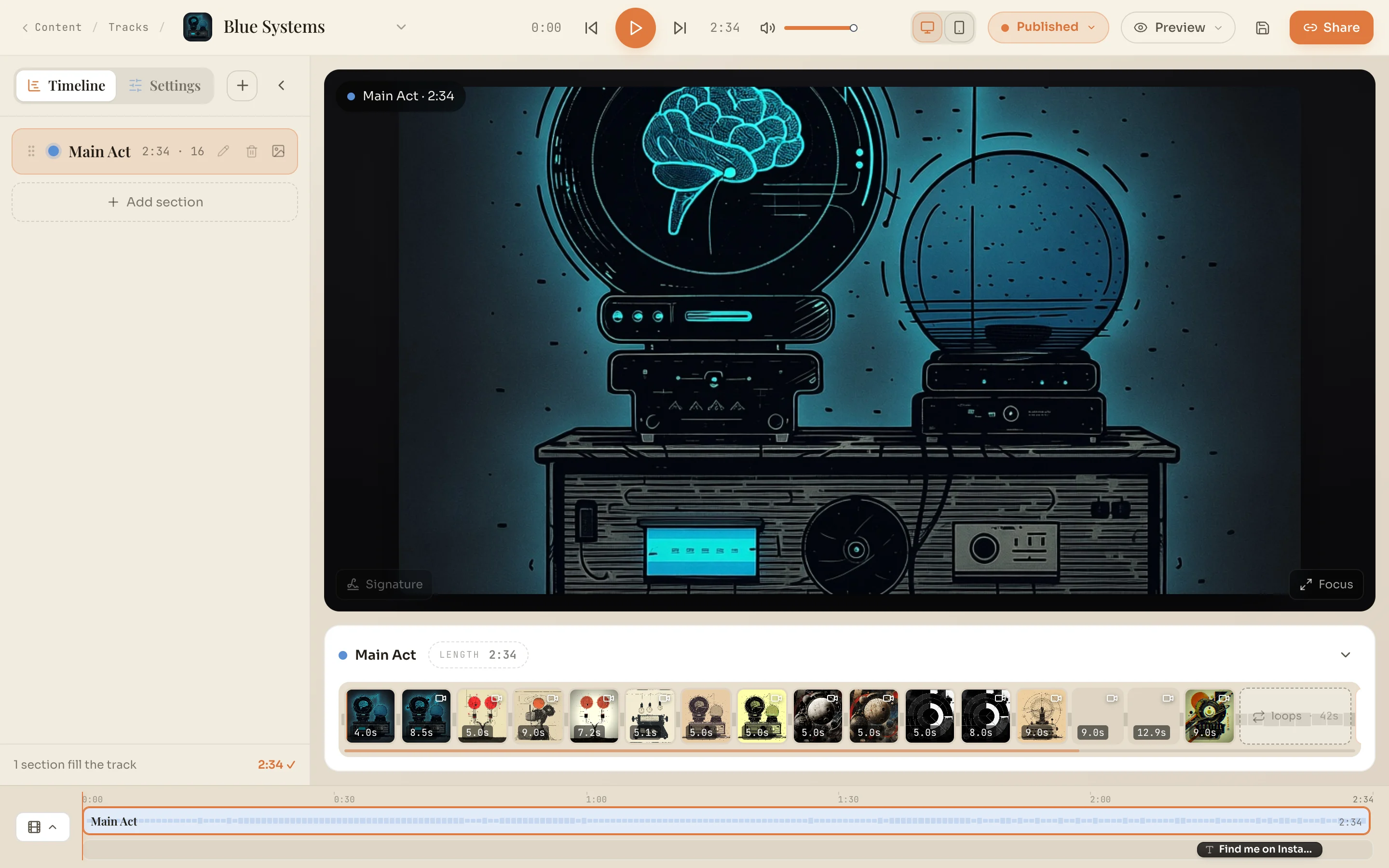
- 1Timeline and Settings. Switches the left panel between the section list and the track’s settings: cover image, info, audience, credits and the rest.
- 2Section. One stretch of the song. Shows its name, its length and how many clips it holds.
- 3Transport. Previous, play and next. Space plays and pauses from anywhere outside a text field.
- 4Wide and Phone. Changes the shape of the preview. Wide is the track page and the landscape export. Phone is the Sonic Grid app.
- 5Status. Draft, Live or Published. See Draft, Live and Published.
- 6Share. Opens the tools for turning the track into a video you can post elsewhere.
- 7Preview. What a listener sees at the playhead. Text can be moved and resized right here.
- 8Section deck. The section you are working in, with its length.
- 9Clip strip. The section’s clips in the order they play. Each shows how long it stays on screen.
- 10Timeline. The whole song at a glance. Click the button to open it to full height.
There is no save button to press. The disk icon in the top bar only reports that your changes are saved, which happens as you work.
Sections
A section is a stretch of the song: an intro, a verse, a chorus. Each section has its own set of clips, so splitting a song into sections is how you change what the pictures are doing when the music changes. Sections sit end to end and together they cover the whole track. The foot of the panel tells you whether they do.
| Click | Open that section in the deck. |
| Drag the grip | Reorder sections. |
| Double-click the name | Rename it. The pencil does the same. |
| Click the length | Type a new length for the section. |
| Add section | Add a section after the others. |
Clips
A clip is one image or one video, with a length. The clips in a section play in order. If they add up to less than the section, they repeat until the section ends, and the dashed loops box at the end of the strip tells you how much of the section is repeats. If they add up to more, the clips past the end of the section are not shown. Hover one and it says so.
| Click | Select the clip and move the playhead to the point you clicked inside it. |
| Drag | Reorder clips. |
| Drag the right edge | Change how long the clip stays on screen. |
| Right-click | Open the clip menu. |
| Plus | Add clips from your media, or make new ones. |
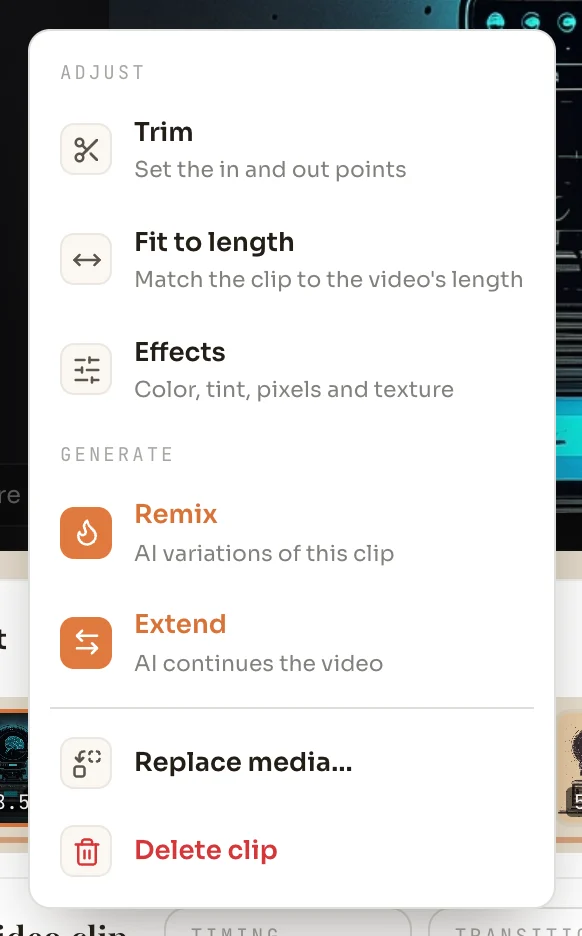
| Trim | Video | Choose which part of the video plays. |
| Fit to length | Video | Set the clip’s length to the video’s own length. |
| Effects | Change color, tint, pixels and texture. The result is rendered as a new clip that you add after this one or use in its place. | |
| Remix | Make variations of the clip with AI. | |
| Extend | Video | Have AI continue the video. |
| Animate | Image | Have AI turn the still into a moving clip. |
| Add clip after… | Add new clips directly after this one. | |
| Replace clip… | Swap the picture and keep the clip’s place and length. | |
| Delete clip | Remove the clip from the section. |
Selecting a clip also opens its settings under the deck: Timing, Transition, Framing and Motion. Two of these open tools on the preview that are worth knowing.
| Drag a handle | Move the start or end point. |
| Arrow keys | Nudge the focused handle by a tenth of a second. |
| Shift and arrow keys | Nudge by a whole second. |
| Home, End | Jump the handle to its limit. |
| Loop the range, Hold last frame | What happens when the part you kept is shorter than the clip. |
| Drag the picture | Choose which part of it shows. |
| Scroll | Zoom in and out. |
| Arrow keys | Nudge the picture. Hold Shift for bigger steps. |
| Esc | Finish. |
The timeline
The strip along the bottom is the whole song. Open it with the button at its left and it grows a header with its own tools, a lane of sections and a lane of text.

- 1Ruler. Click or drag to move the playhead.
- 2Section. Click to work in that section. The playhead lands where you clicked.
- 3Text block. One piece of text. Its position is when it appears and its width is how long it stays.
- 4Add. Section adds a section. Text adds text at the playhead.
- 5Zoom. Minus and plus zoom the timeline. Fit shows the whole song again.
- 6Eye. Hides text in the editor’s preview so you can see the pictures. It does not change the track.
| Drag a section’s right edge | Move the boundary between that section and the next. The last section has no edge to drag, because the song ends where it ends. |
| Right-click a section | Duplicate or delete it. |
| Drag a text block | Change when the text appears. |
| Drag a text block’s right edge | Change how long it stays. |
| Right-click a text block | Duplicate, hide or delete it. |
Text
Text sits over the pictures for a set stretch of the song. Add it from the timeline, then place it by hand on the preview. Selecting a piece of text opens its settings at the side, where you choose the font, color, outline, shadow, background and how it animates in and out.
| Drag | Move the text. |
| Drag a handle | Resize it. There are handles on the four corners and the two sides. |
| Double-click | Edit the words in place. |
| Esc, or Cmd or Ctrl with Enter | Finish editing. Clicking away does the same. |
| Right-click | Open the same menu as the text block on the timeline. |
Settings
Settings at the top of the left panel swaps the section list for everything about the track that is not on the timeline.
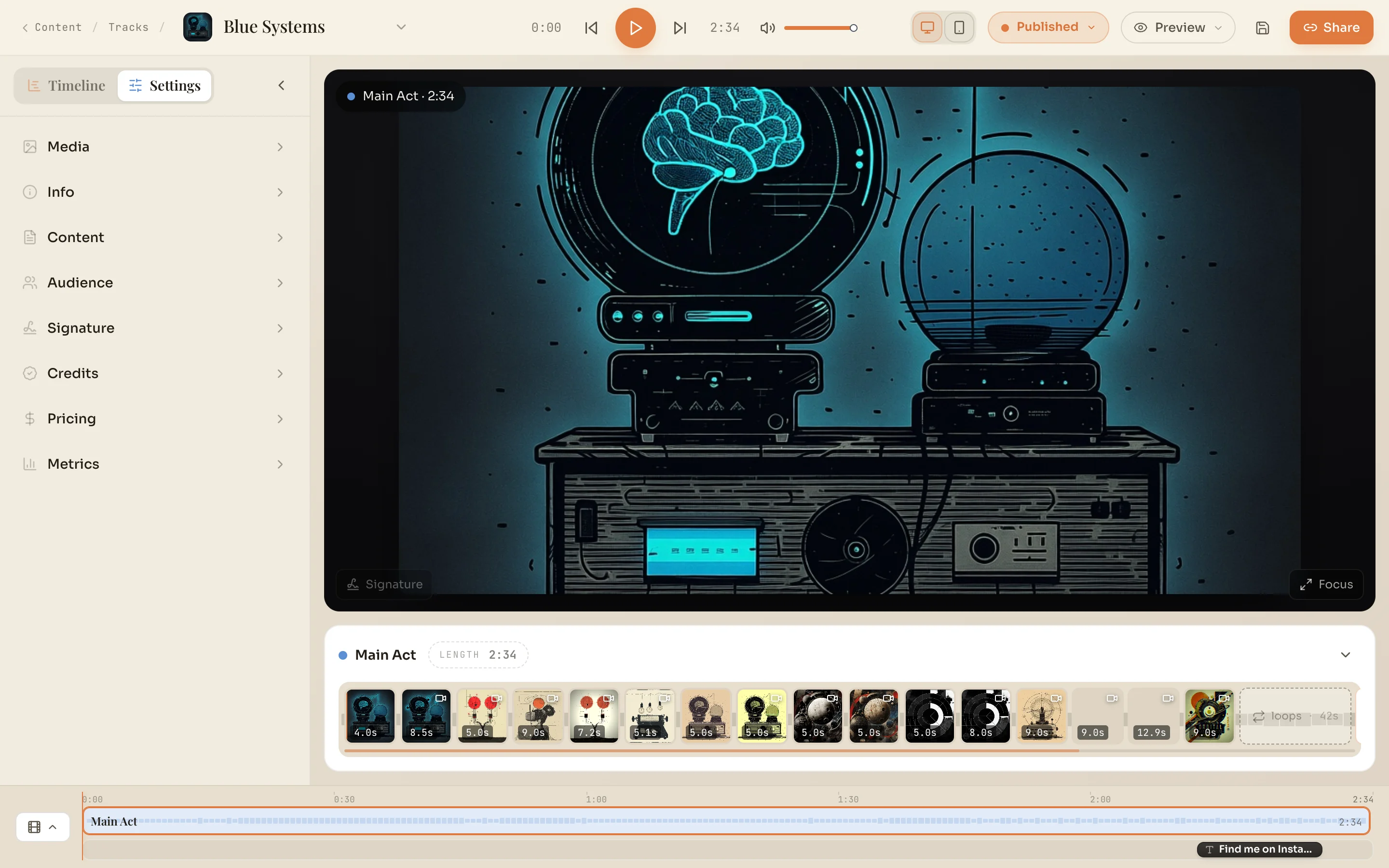
| Media | The cover image and the audio file. |
| Info | Title, recording date, BPM, key, label, lyrics and other details. |
| Audience | Who can hear the track: its publish state, whether it is public or private, who is invited, and whether timed comments show during playback. |
| Signature | The signature shown over the picture: its style, position, size and color. |
| Credits | Who played and made what. |