Jam
Jam is a chat that can do things on your account. It already knows your tracks, posts, collections, brand and themes, so you ask in your own words and it finds, makes or changes the thing. Most of what the rest of this manual covers can also be done by asking here.
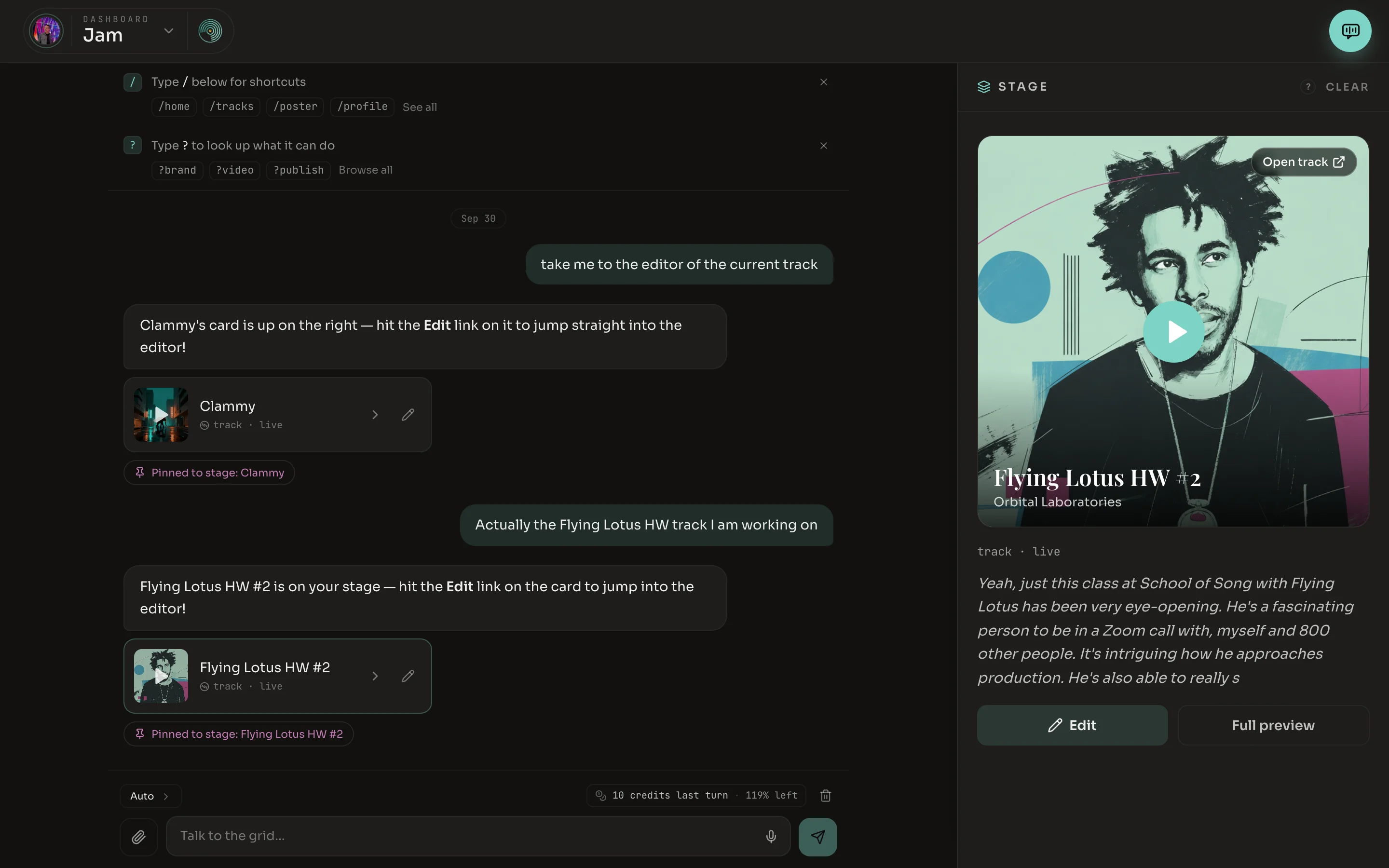
- 1Shortcuts tip. Shown until you use a shortcut or close it. After that a small / button by the box does the same job.
- 2Help tip. Shown until you look something up or close it. After that a small ? button takes its place.
- 3The Stage. The piece you are working on. While it is here, “this one” and “publish it” mean this piece.
- 4Response quality. Auto picks a model for each message. You can choose Economy, Balanced or Best yourself.
- 5Attach. Add an image, audio file or video. You can also drop a file anywhere on the chat.
- 6Dictate. Speak your message in place of typing it.
Where to find it
| Jam in the rail | Opens Jam as a full page. |
| The round button, top right | On the dashboard and the feed, opens Jam beside the page you are on. |
| The same button in an editor | In the post and collection editors, opens Jam about that post or collection. |
It is one conversation wherever you open it. What you said in one place is there in the others.
Asking
Say what you want the way you would say it out loud: “make a poster from my latest track”, “who commented on Blue Systems”. A half-formed request is fine. Jam asks a question back when it is not sure.
| Enter | Send. |
| Shift and Enter | Start a new line. |
| / | Open shortcuts. |
| ? | Look up what Jam can do. |
Shortcuts
Typing / opens a list of commands that skip the conversation: start a new piece, go to a page, or publish. Keep typing to narrow the list.
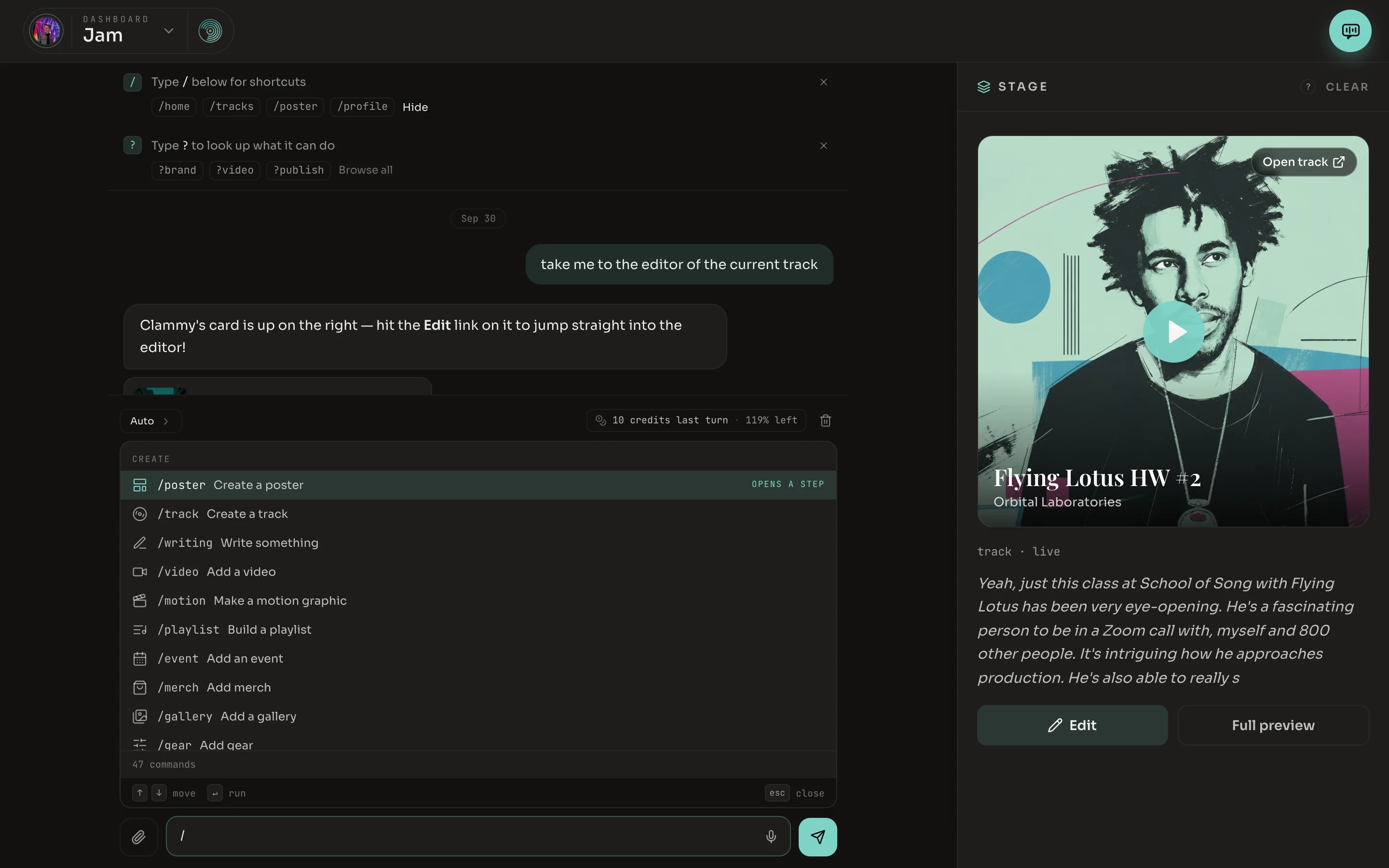
| Up and down arrows | Move through the list. |
| Tab | Fill in the highlighted command without running it. |
| Enter | Run it. |
| Esc | Close the list and keep what you typed. |
Looking up what it can do
Typing ? searches the list of everything Jam can do. Looking never runs anything and never costs credits. The first row opens the full guide, sorted into the groups below.
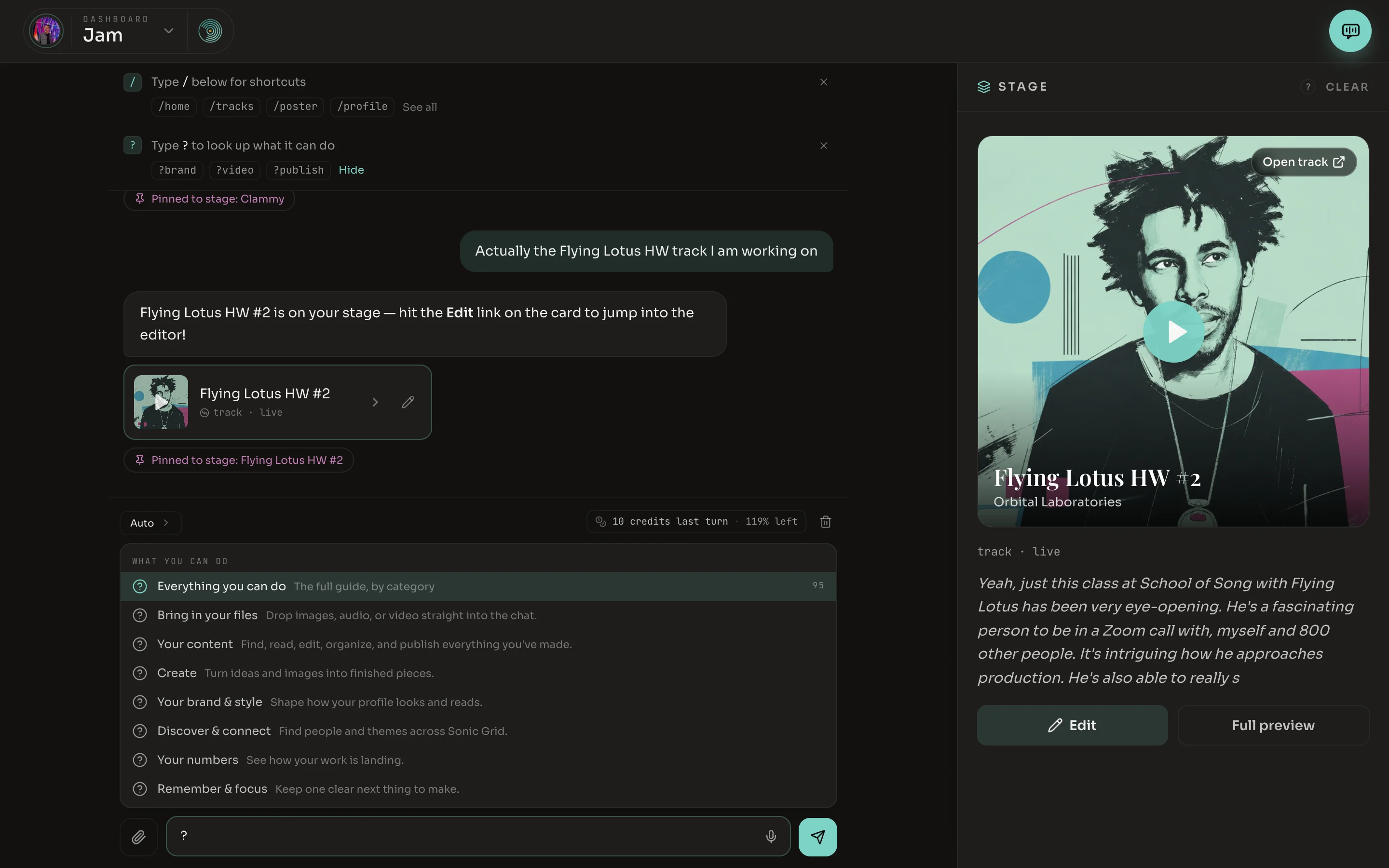
| Bring in your files | Drop images, audio or video into the chat. |
| Your content | Find, read, edit, organize and publish what you have made. |
| Create | Turn ideas and images into finished pieces. |
| Your brand & style | Change how your profile looks and reads. |
| Discover & connect | Find people and themes across Sonic Grid. |
| Your numbers | See how your work is doing. |
| Remember & focus | Keep one clear next thing to make. |
The Stage
The Stage is the tray beside the chat on the Jam page. There is no button that puts something on it. You ask: “let’s work on Blue Systems”. The piece stays there as the thing you are working on, so you can say “change the cover” or “publish it” without naming it again.
The Stage holds tracks and posts. Put several on it and you can ask for them to become a new collection, or to be added to one you already have. Clear empties the Stage and deletes nothing.
What it will not do
Jam does not comment on other people’s work for you, and it does not change your handle, your links, your privacy settings or anything to do with payment. It also cannot see or hear your files. It can place an image, remix it or make a video from it, but it cannot tell you what is in the picture.