Your site
Your site is the set of pages people see at your handle. You build each page from rows, each row is divided into columns, and each column holds blocks that show your tracks, posts, collections and other things. The editor shows the real site on the left and its structure on the right.
Open it from the dashboard menu: Profile, then the Site tab. Press Edit to open the panel.
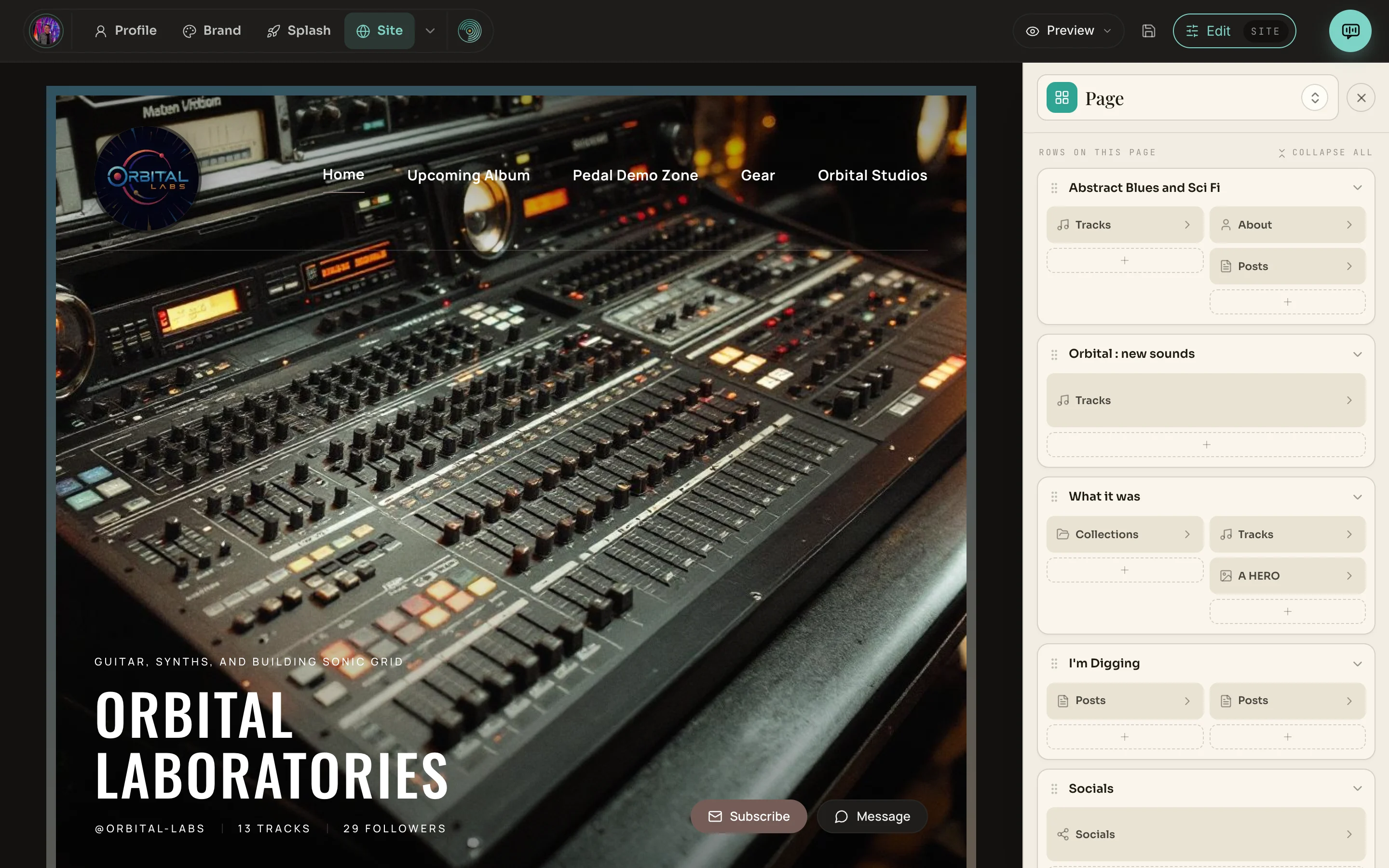
- 1Preview, Save and Edit. Preview shows the site without the editor around it. The disk icon is Save. Edit opens and closes the panel.
- 2What you are editing. Reads Page here. Click it to switch to the header, sections, colors, footer or design.
- 3Rows and blocks. Each card is a row. Inside it are its columns, and the blocks in each column.
The six parts of the editor
The title at the top of the panel is a menu. It chooses which part of the site the panel edits.
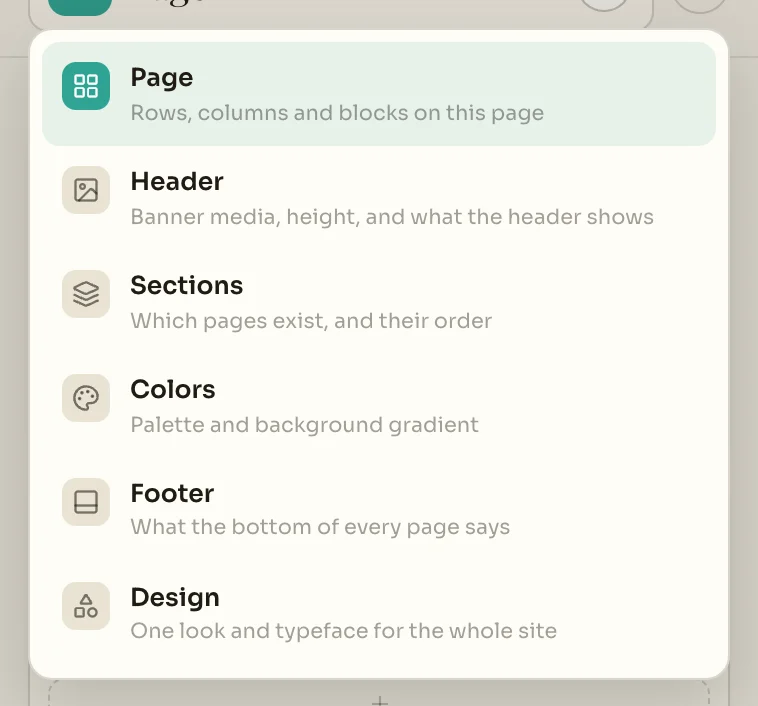
| Page | The rows, columns and blocks on the page you are looking at. |
| Header | The banner picture or video, its height, and what the header shows. |
| Sections | Which pages your site has, and the order of the links to them. |
| Colors | The palette and the background. |
| Footer | What the bottom of every page says. |
| Design | One look and typeface for the whole site. |
Rows
A row is a horizontal band of the page with a title. Its layout decides how many columns it has and how wide each one is.
| Drag the grip | Move the row up or down the page. |
| Click the title | Rename the row. Enter keeps the new name and Esc drops it. |
| Arrow at the right | Fold the row away. Collapse all at the top folds every row, which makes a long page easier to reorder. |
| Row options | Move up, Move down and Delete row. |
| Add row | Add a row at the bottom of the page. |
| Full width | One column. |
| Split | Two equal columns. |
| Sidebar + wide, Wide + sidebar | A narrow column beside a wide one, on either side. |
| Wide center | A wide column between two narrow ones. |
| Wide + stack, Stack + wide | A wide column beside two narrow ones. |
| Four column | Four equal columns. |
Blocks
A block is one thing in a column: a set of tracks, a set of posts, your about text. The plus under a column adds a block to it. Clicking a block in the panel opens its settings, where you choose what it shows and how.
| Drag | Move the block within its column, or into another column or row. |
| Click | Open its settings. |
| Block options | Move up, Move down, Move to left column, Move to right column and delete. |
| Click it on the site | Selects the same block in the panel, so you can find it without reading the list. |
| Tracks, Posts, Collections | Your own work, as a grid, a list or a slide. |
| Feed | The tracks, posts and collections you publish, added automatically as you publish them. |
| Media | Items you pick from your media library. |
| About, Socials, Subscribe | Who you are, your links, and a sign-up for your mailing list. |
| Themes | Your themes, except the ones you have hidden. |
| Story Book | Answers you pick from your interview. |
| Following | People you follow. It appears once you follow at least three. |
| Spaces | Public spaces you have joined. Private and unlisted spaces never show. |
| Shelf | Things you have saved and picked out to show. |
| HTML Embed | Something from elsewhere on the web. |